You can save a card to your SSLs.com account and use it for future purchases. This article explains how to save a card, what information is stored, and how to manage your saved cards.
How to save a card in your account
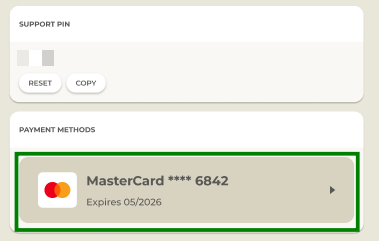
1. In your SSLs.com account, scroll to the Payment methods section.
2. Click + Add new card to open the save menu.

If any cards have been saved before, click on the card to open the card list. Then, click + Add new card.
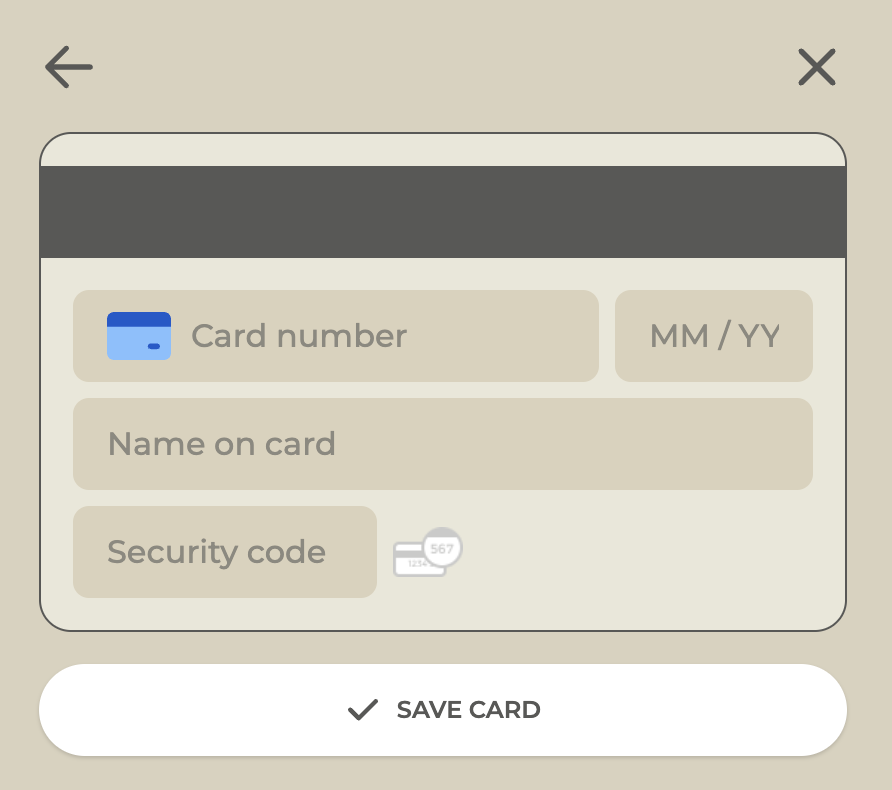
3. Enter your card details.
4. If there are other cards added before but you want a different one to be used by default when you make a purchase, tick “Use as default for new purchases and as a backup if a certificate’s card is declined”.
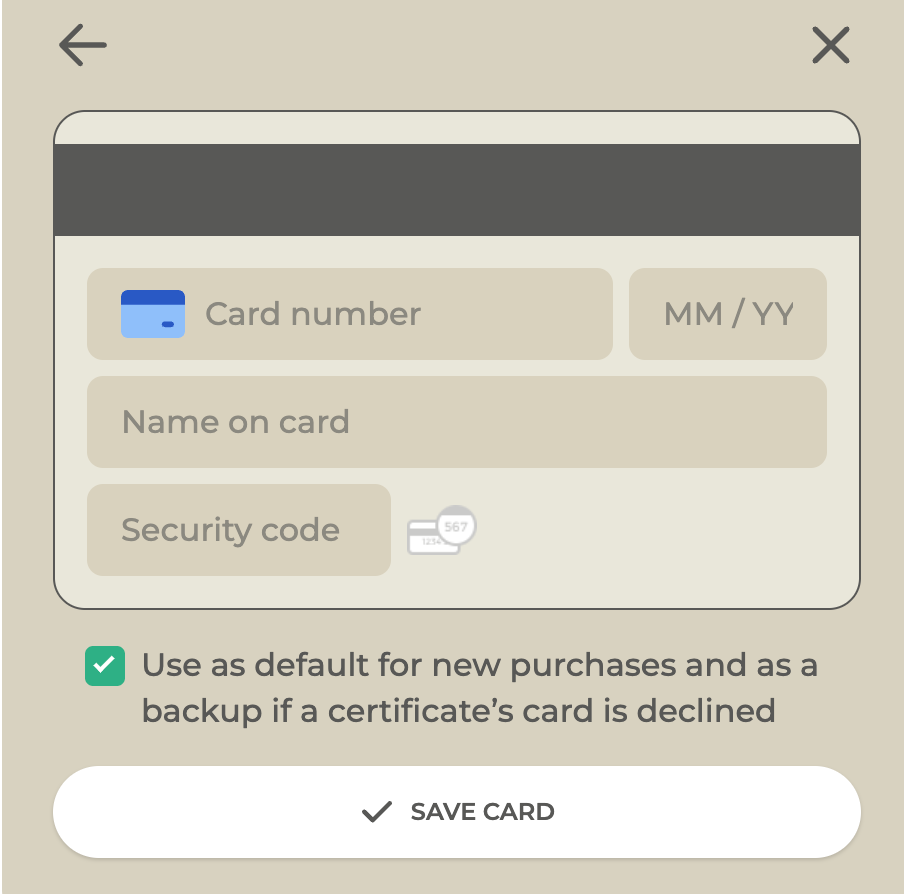
5. Click Save card.
Your card is now saved in your account and ready for future purchases.
How to save a card during the purchase
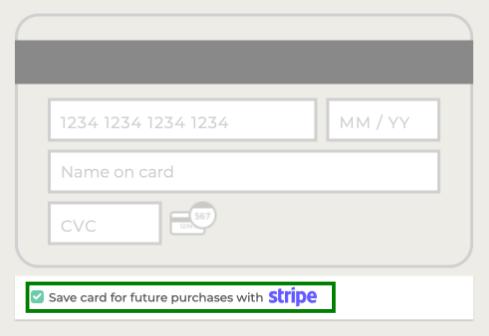
If you pay for a certificate with a new card, enter your card details at checkout, and it will be saved for future purchases.
If you do not want to save a new card, untick Save card for future purchases with Stripe:
What information is stored
Your full card details are stored securely by Stripe. SSLs.com stores only the last 4 digits of your card number and the card brand.
Choosing a card for a purchase
You can use the default saved card for your purchases.
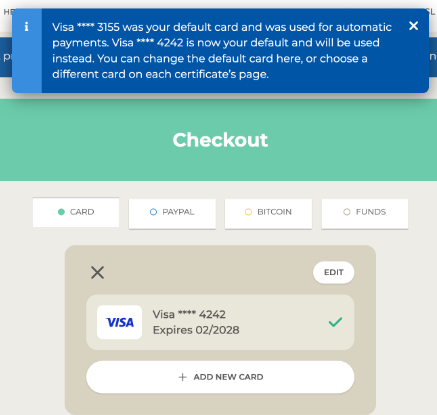
Also, you can choose another one. For this, click on the shown card to open the card list. Then, choose the required one:
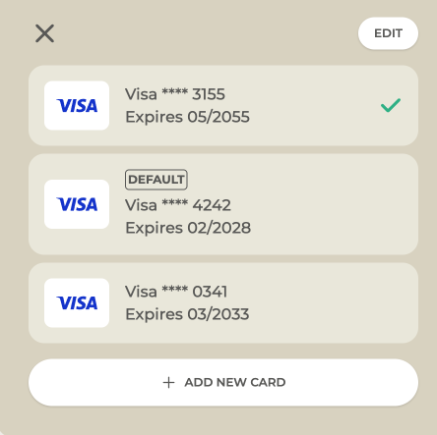
Clicking + Add new card allows you to use a new card that has not been saved before.
How to edit your saved cards
- Go to the Payment methods section of your SSLs.com account.
- Click the card to see the list of all your saved cards.
- Click “Edit” to make the changes you need:
- To choose your default card, click the star next to it. The default card is offered first when you make a purchase.
- To delete a card, click the trash icon next to it.
- To add another card, click + Add new card.
- Click Save to apply your changes.
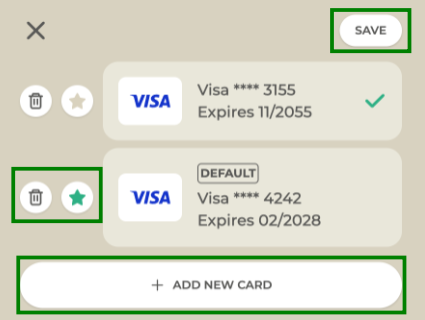
Note: Expired cards can only be deleted.