Sometimes, after importing a PKCS#7 certificate with the full chain, Windows server users may receive an “untrusted connection” error when trying to visit their sites. It happens most frequently with Sectigo certificates on mobile devices. You can find out why this happens and how to prevent it below.
The newest Sectigo SSL/TLS certificates with roots named R46 and E46 may include two possible certificate chains:
- A “short chain” ending in the new self-signed root (R46/E46)
- A “cross-signed chain” ending an older, trusted root, such as USERTrust RSA Certification Authority)
When there are multiple valid chains, Windows servers (particularly those with Microsoft Internet Information Services, IIS) typically select the shorter chain. However, many older clients, devices, embedded systems, and browsers may not trust the shorter chain. This can cause compatibility issues.
To make sure your certificate works on modern and legacy clients, it’s recommended to avoid using the self-signed root and force the server to choose the cross-signed chain. You can do this by flagging self-signed Sectigo roots as disallowed on Windows.
You can do this with the .reg file provided by Sectigo. This file moves the self-signed R46/E46 roots into the Windows certificate registry’s Disallowed store. Windows/IIS will be prevented from ending the chain at those roots, and will have to choose the cross-signed chain instead.
How to use the .reg file
- Download “IISFix-MoveSectigoSelfSignedRoots-Disallowed.reg”
- Run it on your Windows Server with administrator privileges
The registry import will add entries under HKEY_LOCAL_MACHINE\SOFTWARE\Microsoft\SystemCertificates\Disallowed\Certificates\… This aligns with Sectigo’s R46 & E46 roots thumbprints and flags them as disallowed.
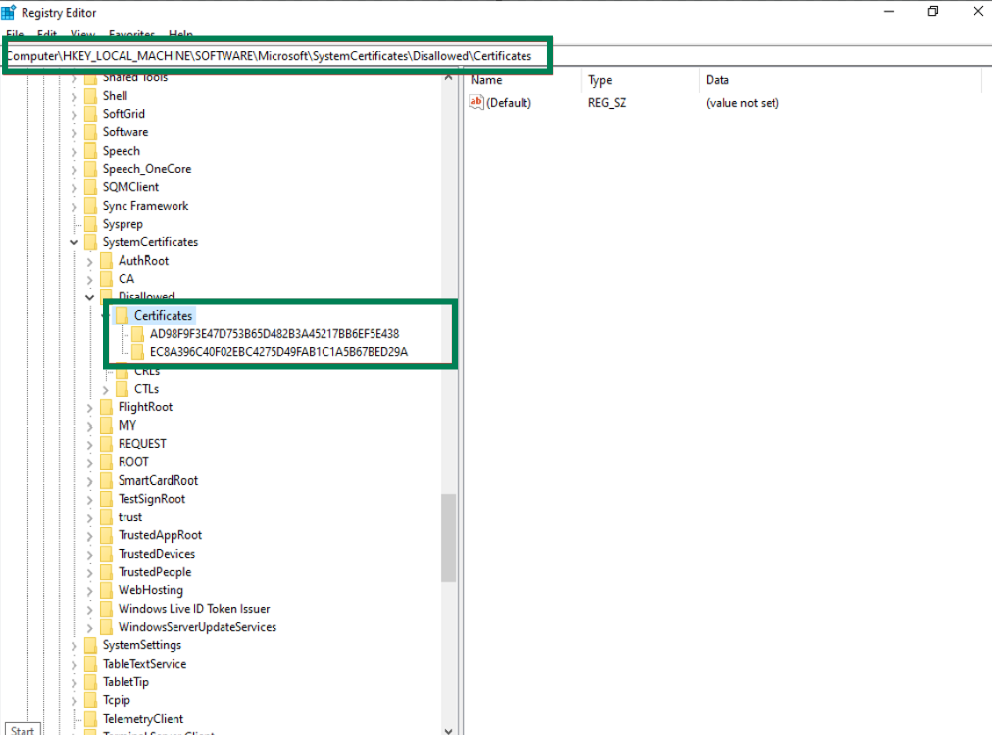
- To ensure Windows reloads its certificate trust/chain logic, restart or reload the whole server (not just IIS).
If you want to revert this change, you can use Sectigo’s “IISFix-MoveSectigoSelfSignedRoots-Restore.reg” .reg file.
Optional:
If the file you download isn’t a .reg file but a .txt extension and UTF-8 encoding, you’ll need to do the following:
Option 1:
Remove the .txt extension at the end of the file name and replace it with .reg (for example: IISFix-MoveSectigoSelfSignedRoots-Disallowed.reg.txt > IISFix-MoveSectigoSelfSignedRoots-Disallowed.reg)
Option 2:
- Use a simple text editor to open the file:
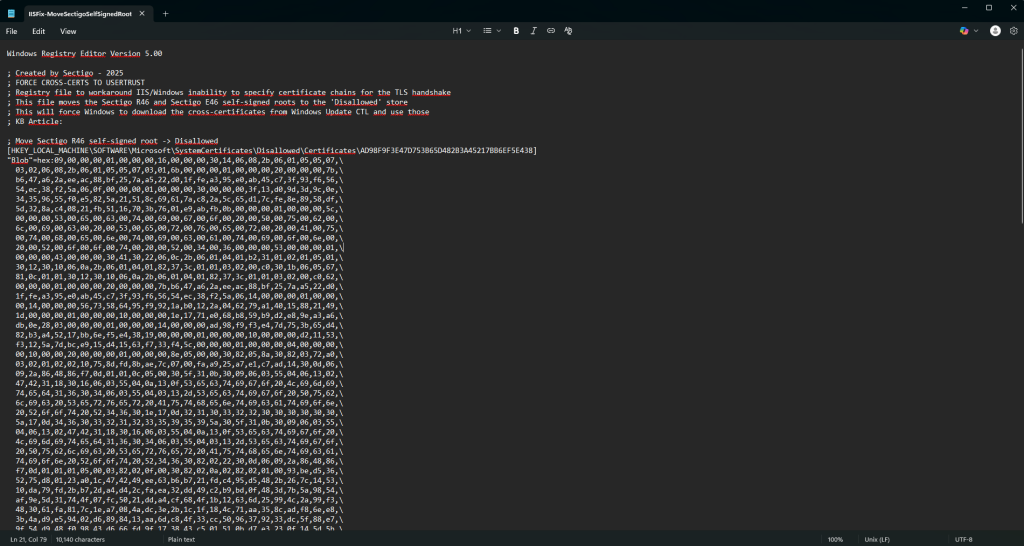
- Select “Save as” to save the file and choose the following options:
- Save as type: All files
- Encoding: ANSI
Sometimes you might need to change the file name somewhat, for instance, by deleting and retyping a number or letter.